
This article will go over installation and signing in to the CloudieConnect mobile app. You can use CloudieConnect to receive and make calls from your work extension. Calls made from the CloudieConnect app will appear to come from your work number.
Installation
Download the CloudieConnect app from your respective app store
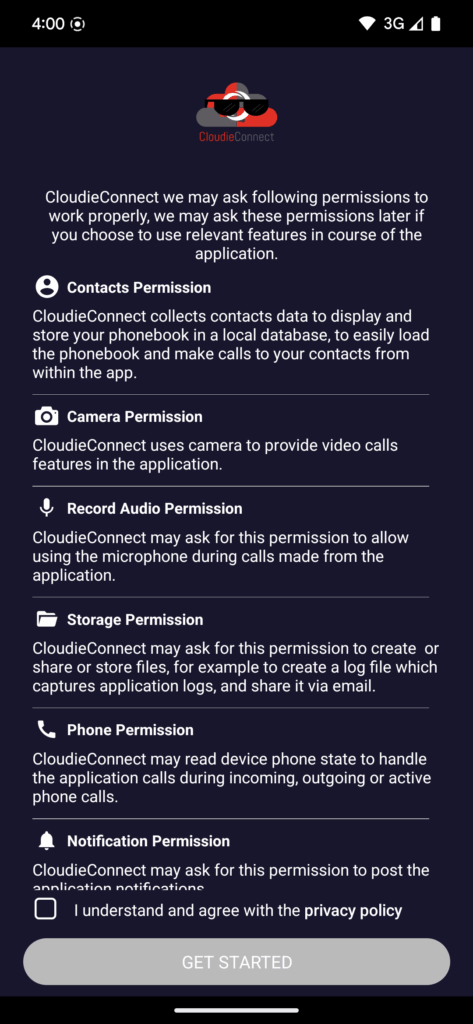
Once downloaded, open the app and accept the terms of service and permissions
Signing In
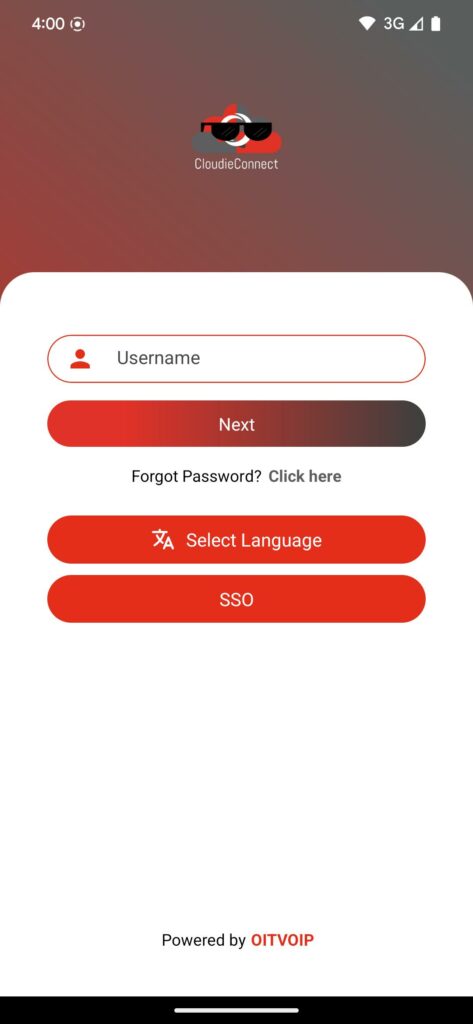
Once at the sign in page you have a couple options to sign in, we recommend using the SSO login. SSO allows you to log in using your work email and password.
- At the login screen, click “SSO”
- Select “Continue with Microsoft”
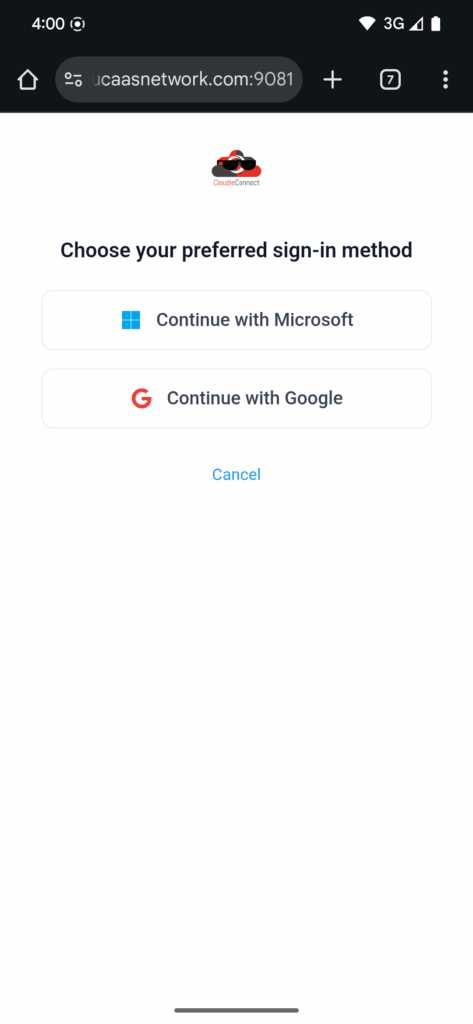
- Log in using your work email and password
You will now be able to receive and make calls to/from your extension. If you have any questions or need any assistance please reach out to support.